EinzzTools Session ID Guide
How to find your TikTok Session ID and more...
How to find your Session ID
When you log in to TikTok in your browser, TikTok stores a small cookie called
sessionid. It is the proof that you are logged in, so TikTok does not ask for your
password on every click. Our tools can use it to look at things that only you are allowed to see on your own account,
for example your private videos, private reposts, private likes or stories, and to remove your own reposts with the Repost Remover.
For public content you do not need it. Every Session ID box on this site is optional unless the page says otherwise.
This only works in a browser on a computer (Windows, macOS or Linux), for example Chrome, Edge, Brave or Firefox. It does not work on phones or tablets: mobile browsers and the TikTok app have no developer tools and give you no way to look at cookies. You can still use the tools on your phone afterwards, just copy the value on a computer first.
- Find it — follow the steps below and copy the value of
sessionid - Paste it — put it into the "Session ID" box on the page you use (Video Downloader, Video Info, Comments, Reposts, Likes, Story, User Info or the Repost Remover)
- Use your own account — it only shows what your own account is allowed to see
- Done? — clear the box or close the tab. Nothing is kept for later
- It works like a key — anyone who has your Session ID can act as you on TikTok, without your password and without a verification code
- Never share it — not with friends, not in chats, not in screenshots, not in support requests. Nobody serious will ever ask for it
- Only your own — only paste it into pages you trust, and only into sites you understand. We send it only with your request and do not store it, but you still hand over access to your account while it is valid
- Deleting is permanent — the Repost Remover removes reposts from your real account and this cannot be undone
- If it ever leaks — log out of TikTok (and change your password). That ends the session and makes the old Session ID useless
- Your responsibility — using your account with third-party tools can go against TikTok's rules. You use this at your own risk
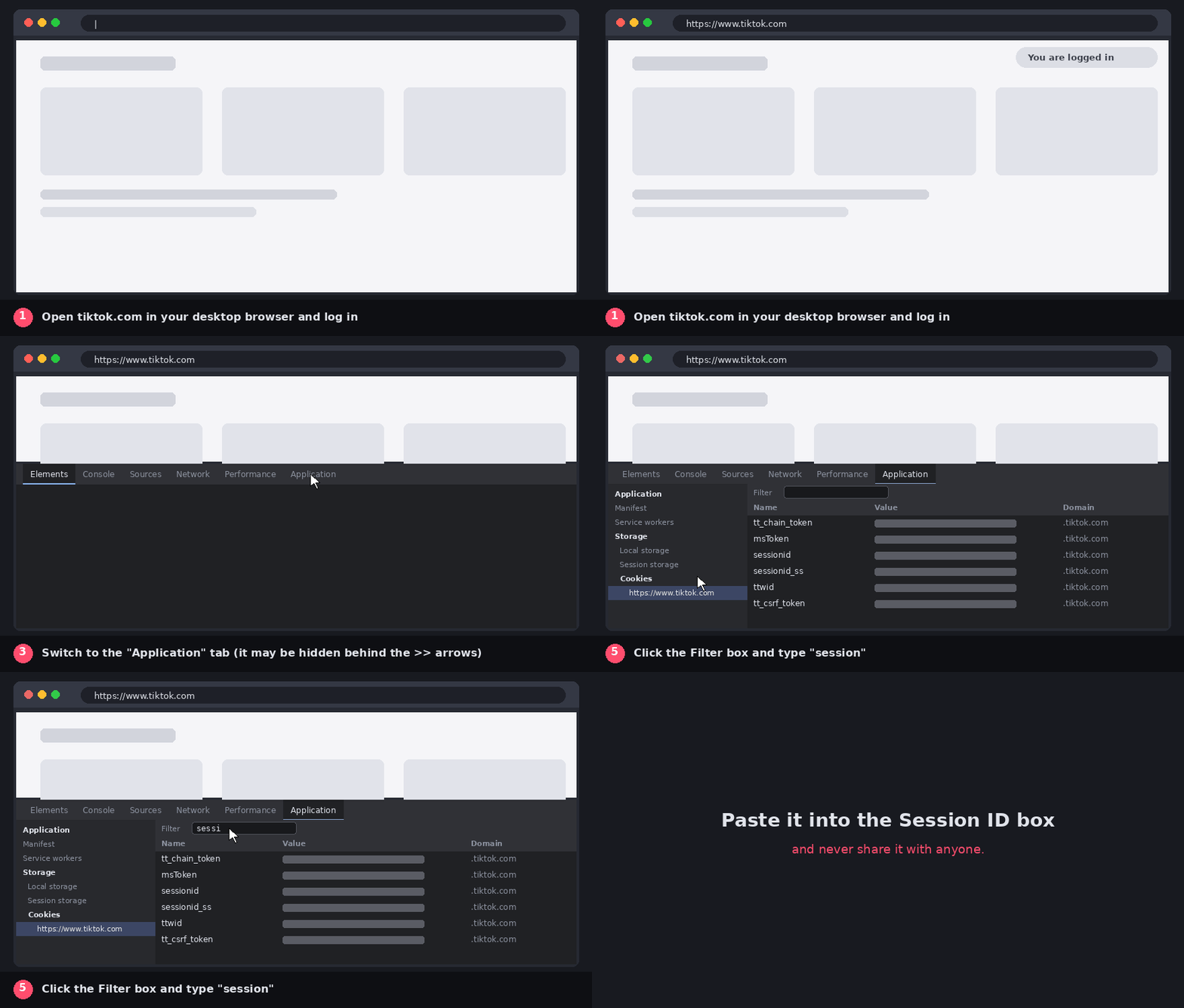
- Open tiktok.com in your desktop browser and make sure you are logged in.
- Press F12 (or Ctrl + Shift + I, on a Mac Cmd + Option + I) to open the developer tools.
- Switch to the Application tab. If you cannot see it, click the » arrows to show hidden tabs. In Firefox this tab is called Storage.
- In the left sidebar open Cookies and click https://www.tiktok.com.
- Click the Filter box and type session.
- Double-click the Value of the row called
sessionid, then copy it with Ctrl + C (Mac: Cmd + C). - Paste it into the Session ID box. Treat it like a password.
The animation is an illustration with hidden values. Your browser's look may differ slightly, but the steps are the same.